Statuses
Move a request between statuses with the Update status menu in the top bar of the Overview screen. Most statuses apply immediately; three of them open a dialog to collect required information first. Every status change stamps the review date and updated by on the record.
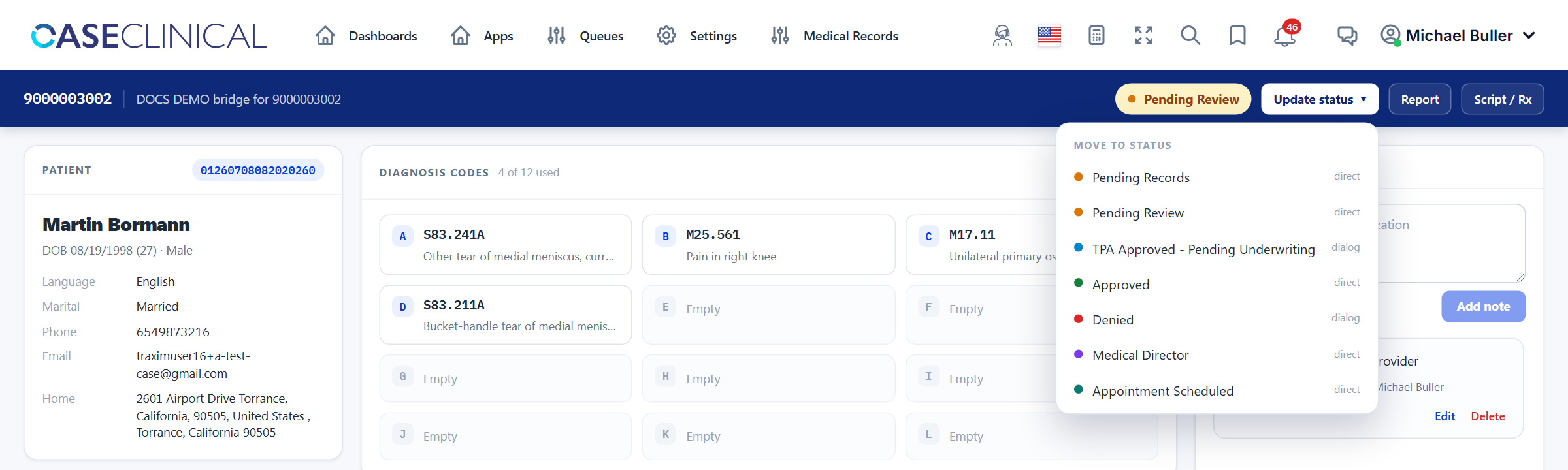
Pending Records
Pending Records- When to use: the request is in but the supporting medical records have not arrived yet.
- What happens: direct update — no dialog.
- Next: move to Pending Review once the records are attached.
Pending Review
Pending Review- When to use: records are in and the request is waiting on TPA review. This is the status the TPA queue view filters on — everything in your work list is here.
- What happens: direct update — no dialog.
- Next: after review, one of TPA Approved, Denied, or Medical Director.
TPA Approved — Pending Underwriting
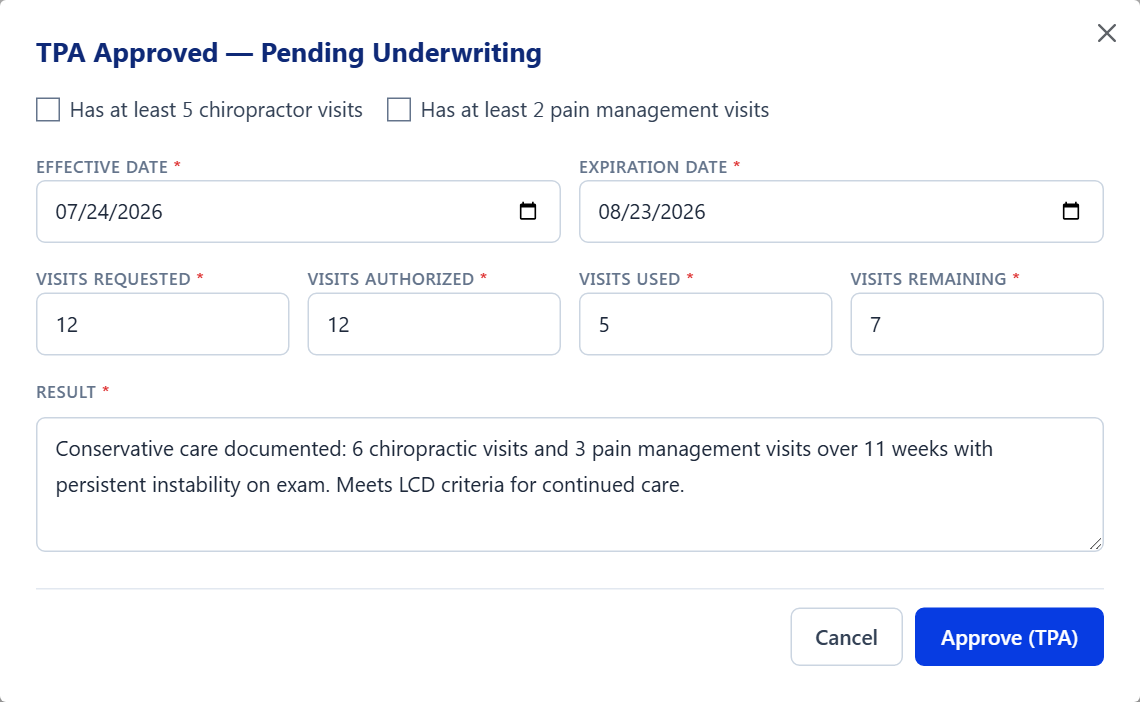
TPA Approved — Pending Underwriting- When to use: the request meets guideline criteria and you are authorizing visits, pending PCH underwriting.
- What happens: opens the TPA approval dialog. All fields are
required except the criteria checkboxes:
- Conservative care criteria — check what is documented: Has at least 5 chiropractor visits · Has at least 2 pain management visits.
- Effective date and Expiration date of the authorization.
- Visits requested / authorized / used / remaining.
- Result — summarize the decision and the guideline applied (e.g. LCD reference).
- Next: underwriting moves the request to Approved.
Approved
Approved- When to use: the authorization is fully approved.
- What happens: direct update — unless the request is currently Denied, in which case an override dialog opens and requires an override reason (e.g. Peer review completed, Additional records received, Medical director override, Appeal granted).
- Next: scheduling — Appointment Scheduled.
Denied
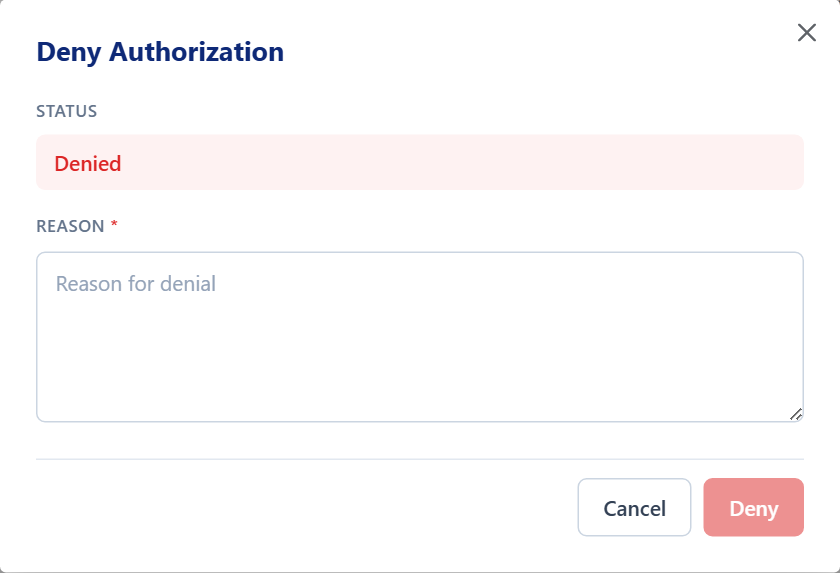
Denied- When to use: the request does not meet criteria, or required documentation was never provided.
- What happens: opens the deny dialog. A reason is required — explain what is missing or which criteria were not met. The provider is notified with the reason you enter.
- Next: a denial can be overturned later via Approved (override reason required — see above).
Medical Director
Medical Director- When to use: the case needs physician-level peer review before a determination — escalations, borderline criteria, appeals.
- What happens: direct update — no dialog. Add a note with the question you are escalating.
- Next: back to Pending Review (or straight to a determination) once the medical director responds.
Appointment Scheduled
Appointment Scheduled- When to use: the authorized care has been scheduled with the provider.
- What happens: direct update — no dialog. The Appointments card on the Overview shows the scheduled visits.
Quick reference
| Status | Dialog? | Required fields |
|---|---|---|
| Pending Records | — | — |
| Pending Review | — | — |
| TPA Approved — Pending Underwriting | Yes | Effective + expiration dates, 4 visit counts, result |
| Approved | Only when currently Denied | Override reason |
| Denied | Yes | Reason |
| Medical Director | — | — |
| Appointment Scheduled | — | — |